Tuesday, March 25, 2008

Energy Blast Tutorial #2

In this tutorial you will learn how to create a circular blasted ring effect.

Step 1- Vertical Line
Create a new image. For this tutorial, I used 500x500. Fill the background with a dark color. I used #1b1b32.
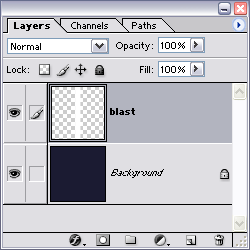
Create a new layer then double click on that layer, and name it blast.
Create a vertical line on the blast layer by using the Rectangular Marquee Tool (M or SHIFT + M). My line was 50x500.
Fill the selection by setting your forground color to white (you can press D to reset to default colors). Then press ALT + BACKSPACE
Deselect by pressing CTRL + D
Step 2 - Spikes
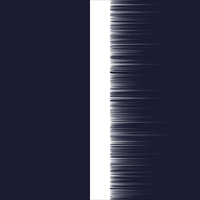
Now we add the spikes.
Filter » Stylize » Wind » [ Method: wind Direction: From the Left ]
Repeat the last filter 2 more times by pressing CTRL + F twice.
Step 3 - More Spikes
Spikes on the other side.
Filter » Stylize » Wind » [ Method: wind Direction: From the Right ]
Repeat the last filter 2 more times by pressing CTRL + F twice.
Step 4 - Motion Blur
Add a little blur.
Filter » Blur » Motion Blur [ Angle:Distance: 20 pixels ]
Play with the # of pixels to get different effects
Step 5 - Polar Coordinates
Rotate the Blast Layer by pressing CTRL + A to select all, then CTRL + T to enter transform mode, then right click on the layer, and select Rotate 90° Clockwise, then press ENTER to apply the transform.
Now would be a good time to copy the blast layer if you want more then one blast ring. You can do this by pressing CTRL + J to duplicate the current layer, then click the eye icon next to the dup layer to turn it off for now.
Now we need to bend this into a curve. Make sure you have the blast layer selected,
Filter » Distort » Polar Coordinates [ Rectangle to Polar ]
Step 6 - Color Dodge
Next set the fill mode to Color Dodge and the fill to 80%.
You should have a nice little blast ring now, and just need something to put below it and then just tweak the fill percent on the layer to get exactly what you want.
Well this in its self, is not all that impressive, so lets go on to the next section where I will show you how to spice it up a bit.
Step 7 - Sun Layer
Create a new layer above the other layers and name it Sun. Fill it with black, by pressing D to reset your colors, then ALT + BACKSPACE to fill with your foreground color. Set the blend mode to Color Dodge.
Filter » Render » Lens Flare [ 105mm Prime, Brightness: 100%]
Make sure your Flare Center is in the center, or as close as you can get it.
Step 8 - Energy
Create another new layer below the sun layer, and name it energy.Set this layers blending mode to Color Dodge.
Filter » Render » Clouds
Filter » Distort » Pinch [100%]
Repete the last filter two times by pressing CTRL + F twice.
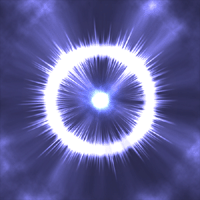
Step 9 - Chrome
Copy the energy layer by pressing CTRL + J
Filter » Render » Lighting Effects
Colors: White
Light type: Omni
Intensity: 14
Gloss: 65
Material: 96
Exposure: 30
Ambience: -8
Filter » Sketch - > Chrome [ Detail:4 Smoothness:7 ]
tip: you can play around with the numbers on both the Lighting Effects, and the Chrome filters to achieve different effects.
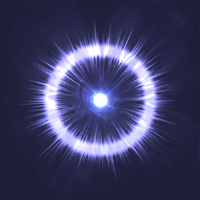
Step 10 - Levels
Now we just make the whites a little whiter by using Levels
Press CTRL + L to bring up the Levels.
Slide the sliders around untill you get the amout you want. I used 25, 1.00 133
You should have a pretty nice looking energy blast effect.
Step 11 - Play around
This is a very fun tutorial to play around with and create endless possiblilities. Try these on your energy copy layer:
Filter » Render » Lighting Effects
Colors: White
Light type: Omni
Intensity: 14
Gloss: 65
Material: 96
Exposure: 30
Ambience: -8
Levels: 0, 0.55, 187

Photo to Sketch Tutorial

Learn how to convert photos to sketches.

Step 1:

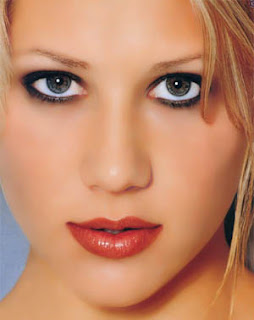
Here is the photo I am using for this tutorial. Feel free to use it, if you'd like.


Step 2:

Copy your photo into a new document and name ir 'Original'. Duplicate the layer 'Original' and rename it 'Desaturated'. Desaturate the layer 'Desaturated' so that it has no color by hitting Shift+Ctrl+U (Mac: Shift+Command+U). Duplicate the 'Desaturated' layer and name the new layer '1'. Now go Filters>Blur>Smart Blur and use these settings:

Radius: 60
Threshold: 100
Best Quality and use Edge Only.
Click OK and invert the layer, now apply a Filter>Blur>Gaussian Blur with a radius of 1, and set its Blending Mode to Hard Light (which can by done in the upper left corner of the Layers Palette).


Step 3:

Duplicate the 'Desaturated' layer, rename it to '2', and move it over layer '1'. Now go Stylize>Emboss and use these settings:

Height: 1
Amount: 119%
Click OK and set the Blending Mode to Hard Light. Duplicate the 'Desaturated' layer, rename it to '3', and move it above layer '2'. Apply the Filters>Blur>Smart Blur filter once again but this time use:

Radius: 10
Threshold: 100
Best Quality and Edges Only.
Click OK. Invert the layer and set the Blending Mode to Multiply and Opacity to 40%.


Step 4:

Once again, duplicate the 'Desaturated' layer, rename it to '4' and move it above layer '3'. Apply the Filter>Styling>Glowing Edges filter with these settings:

Edge Width: 1
Edge Brightness: 7
Smoothness: 6
Click OK and invert the layer. Set the Blending Mode to Multiply and the Opacity to 40%. Duplicate the layer '4' and Filter>Blur>Gaussian Blur it, use a radius of about 3 - 4 this will give us that shaded look. Set the Blending Mode to Multiply and Opacity to 100%.


Step 5: Adding Color

Duplicate the 'Original' layer and name it 'Color' and move it to the top of all the layers. Set its Blending Mode to Hard Light, duplicate the layer 'Color', and set its Blending Mode to Color. Here are the finished results.

Glowing Text Tutorial

A twist on the typical glowing text tutorial.

Step 1 - Create the Text
Start with a new image 1000x500 and fill the background with black.
Set your foreground color to #042040.
Create a new text layer and center it.
I used a font size of 220 pt.
Step 2 - Outside Glow
Create a new layer , then double click on that layer (in the layers palette), and name it outside glow, and then move it bellow the text layer.
Hold down the CTRL key and click on the the text layer in the layers palette to select it.
Change your foreground color to #16406F then fill the selection with it by pressing ALT + BACKSPACE.
Deselect CTRL+D, and then Gaussian blur the layer 20 pixels.
Filter » Blur » Gaussian Blur » [ Radius 20 Pixels ].
Step 3 - Small Lines
Create a new layer above the text layer, and name it sml lines.
Select the single row marquee tool by clicking and holding down the mouse on the Marquee Tool in the ToolBox, untill the other tools apear, then selecting it.
Hold down SHIFT and click several different times to create several differt line selections.
After you have several line selections, fill them with white.
Step 4 - Gaussian Blur
Gaussian Blur the layer by 1 pixel.
Filter » Blur » Gaussian Blur » [ Radius 1 Pixel ]
Duplicate the current layer. CTRL + J. Then merge the two layers down together CTRL + E.
Set the blending mode to Color Dodge, then open the blending options by right clicking on the sml lines layer and selecting blending options.
Set the fill on the layer to 80%.
Step 5 - Medium Lines
Create a new layer above the sml lines, layer and name it med lines.
Make a selection, using the Rectangular Marquee Tool (M or SHIFT + M) across the whole image, that is 5 pixels high.
Fill the selection with white CTRL + BACKSPACE
Deselect CTRL + D, then Gaussian blur by 3 pixels.
Filter » Blur » Gaussian Blur » [ Radius 3 Pixel ]
Set this layers blending mode to Color Dodge, and also in the blending options uncheck Transparency Shapes Layer.
Step 6 - Large Line
Create a new layer above the med lines layer and name it large line.
Make a selection, using the Rectangular Marquee Tool across the whole image, that is 15 pixels high.
Fill the selection with white CTRL + BACKSPACE
Deselect CTRL + D, then Gaussian blur by 5 pixels.
Filter » Blur » Gaussian Blur » [ Radius 5 Pixel ]
Set this layers blending mode to Color Dodge, and also in the blending options uncheck Transparency Shapes Layer.
Step 7 - Outline
Create a new layer bellow the text layer and name it Outline.
While holding down CTRL, click the text layer to select it.
Expand that selection by 3 pixels.
Select » Modify » Expand [ Expand by 3 Pixels ]
Then fill the selection with a light gray. (#B5BBC2) Press ALT + BACKSPACE to fill, then press CTRL + D to deselect.
Step 8 - Gaussian Blur
Gaussian Blur Outline by 2 pixels.
Filter » Blur » Gaussian Blur » [ Radius 5 Pixel ]
Set the blending mode on the layer to Color Dodge, and also in the blending options uncheck Transparency Shapes Layer.
Step 9 - The Darkness Inside
Create a new layer above the the text layer and name it DarknessInside.
While holding down CTRL, click the text layer to select it.
Contract that selection by 5 pixels.
Select » Modify » Contract [ Expand by 3 Pixels ]
Next, fill that selection with black, by pressing D to reset the colors, then ALT + BACKSPACE to fill with the foreground color.
CTRL + D to deselect, then Gaussian blur the layer 4 pixels.
Filter » Blur » Gaussian Blur » [ Radius 4 Pixel ]
Step 10 - Motion Blur
Ok now the fun part. Select the outside glow layer, and then motion blur it as much as you want. On mine i used 200.
Filter » Blur » Motion Blur [ Distance 200 Pixels Angle 0° ]

Glamour Photo Tutorial

Turn your subject into a supermodel.

Step 1:
Create a duplicate of your image.

Step 2:

Delete everything except the skin. Erase the detail sections with 30-50% opacity eraser.

Step 3:
Selection the layer (CTRL+click on layer) and run >Filter>Noise>Median.Step 4:
Change the Layer Mode to Luminosity - The Opacity is at 100% and needs to be turned down for a more realistic look.Step 5:

The Opacity has been brought down to 65%:

Extra Tip #1
You could also duplicate the "skin" layer and change the Layer Mode to Soft Light for a warmer feel.
Extra Tip #2
Or create an quick tan by changing the second skin layer to Multiply. (bring the Opacity down to less than 50%):

Correcting Tone Using Levels Tutorial

Tone
The first and foremost item you should be correcting when you bring a photo into Photoshop is the tone, or the variance of dark and light, of the image. Most people do this with the Brightness/Contrast feature. Brightness increases the overall white in a photo, while contrast increases the difference between black and white. Although they may seem effective, using such simple controls can do more harm than good. To become a better Photoshop user you must forget the Brightness/Contrast feature and begin using Levels instead.

What is Levels?
Open up your image and go to the menu item: image>adjustments>levels (or press Ctrl L). This will bring up a graph call a histogram. It plots the tone of an image from black to white (left to right) across the X-axis, with the y-axis being the amount of image information within that range of gray. The higher the peak of more of your image information falls within that range of gray. If you're histogram leans to the left, your image has lots of shadows or black and is possibly underexposed. If your histogram leans to the right, your image has lots of highlights or whites and is possibly overexposed. Histograms that are balanced and symmetrical often stem from images that are more pleasing to the eye and are generally considered to be exposed properly. These images are often referred to having a balanced tone. It's not wrong to have a histogram that leans to the left or to the right, but generally creating a vivid image requires a more balanced tone.

Exposure
What does it mean when an image is over- or under-exposed? When image is so dark that many areas contain pure black and no detail, that portion of the image is considered to be under-exposed. Which means not enough light was getting through the lens to provide enough detail to the film or digital image sensor. If too much light was getting through, portions of the image may become so bright that they lose all detail and become pure white. This called over-exposure.

A histogram shows brightness from pure black to pure white. Everything in between are shades of gray. If a histogram shows the image data is bunching up on the pure white or pure black ends of the graph, and the graph looks as if the head and tail were clipped off, then the image may have under-or over-exposure problems.

Using levels

Open your image.
Press Ctrl. L to bring up the Levels window.
The levels window should look similar to the screen below. You can ignore everything I marked in the blue box.

Image preview:

Take note of the following controls and how they work:

The Black Point slider. By moving the slider you're telling Photoshop that you want the range of tone within the image to start as black here. Any total information to the left of the slider will be lost.

The White Point slider. By moving the slider you're telling Photoshop that you want the range of tone within the image to end as white here. Adjusting the Black Point in the White Point sliders are similar to adjusting the contrast of an image, only you have far more control.

The Gray Midpoint slider. By moving the slider you're telling Photoshop that you want the range of all tones between black and white to center around this point. Moving this control is similar to adjusting the brightness of an image.

Below where it says “Output Levels” is where you can manually clip the highlights and shadows of your image. By moving the black and white sliders along the Clipping Scale, you can force the image to exclude either highlight or shadow information. By shifting the black slider to the right, you are purposely removing some shadow detail in the image. By shifting the white slider to the left you are purposely removing some highlight detail. Essentially this function allows you to remove detail from the tale ends of the histogram if needed.

What does this histogram tell me?

The first thing you need to do when you bring up levels, is to study the histogram. Find out what the issues are, then adjust your sliders to their optimal positions. In this example the far left side of the histogram is lacking information. This means that there are no deep shadows in this photo. You could almost tell by looking at it: The darkest points only reach a dark gray. On the far right a thin line in the graph shows that there are some highlights, but not many. Luckily it appears as though almost no histogram information is being clipped off the far ends of the graph. If too much information was clipped off the far ends, it would be very difficult to fix.

Remapping tone.

Essentially what you need to do is tell Photoshop that you want the image’s darkest shade to become pure black, and the image’s lighter shade to become pure white. This will re-map all the shades in the image, giving it better contrast, detail, and dynamic range.

The Black Point slider. You want to position this slider just under where the left side of the histogram data appears or bulges. You'll notice in the preview, the shadows darken.
The White Point slider. You want to position this slider just under where the right side of the histogram data appears or bulges. You'll notice in the preview, the highlights brighten. Since there were small bits of information on the highlights end, moving this slider passed them has clipped these highlights from the image. Sometimes clipping highlights or shadow detail is a sacrifice that must be made to gain a more pleasing tonal range. It's OK in this case since the highlight data that is present is very small (not a large bulge on the graph).
The Gray Midpoint slider. You can fine tune the brightness of the image by moving this slider, but in most cases this can be left as is.
You can now either click OK to apply the adjustments, cancel, or hold Alt. and click Reset to reset the slider positions. Now you know how to use Levels instead of the brightness/contrast function of Photoshop.
Monday, March 24, 2008

Spectacular Explosion Tutorial

This tutorial will show how to create an amazing Hollywood-like spectacular explosion.

Step 1:
Start off with a new image of your size with a black backgound. Create a new layer (we're only going to use one layer in this tutorial so don't care to call it something). Create dots with the airbrush, use a 100px brush.
Step 2:
Now do some work with the smudge tool. Drag the smudge tool from out to in and in to out to get a nice effect. Work on it to make it look nice, yet random.
Step 3:
Now here comes the part where all the noobies fall off. This might take time.Start off by using different brushes (I used photoshop brushes only..!) and make effects. Use the grungy brushes and make sparkles coming out of the explosion. Do some more smudging, add more brushing and voila!
Step 4:
Pick up your burn tool, choose the scattered maple leaves brush for your burn tool,master diameter (or brush size if you like)= 15-25
range=highlights
exposure=22%
Now go over your white boring explosion and brush... Release your mouse button and brush over it to create some dark parts and some lighter. Make it cool, yet random. Vary the brush size for better results.
Step 5:
Here comes the easy part - straight ahead actually. Duplicate your layer and set it to hard light. Then go image - adjustments - hue/saturation and get a nice color (you have to lower the brightness to make the colors appear). If your a real pro, you can use color balance. I used hue/saturation.
Step 6:
Duplicate that layer you just made, and set it to Color Burn. Now go image - adjustments - hue/saturation and give it a nice, warm, red color. This will add depth and some realistic effect to it.
Now you're done. This effect works wonderfully in abstracts.

Shocking Text Tutorial

In this tutorial you will learn how to plug your text into a light socket!

Step 1: - Preparing the Text

Create a new image 400x400px with a “transparent” background. Rename the only existing layer “back”.

Fill ( Edit > Fill ) layer "back" with black ( Hext #000000 ).

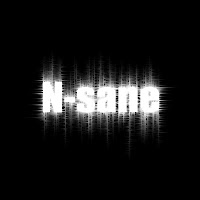
Using the Horizontal Type Tool, write some large text in white ( Hex #FFFFFF ). For this tutorial, I wrote “N-sane” in 80 pt with the font Impact.

Rasterize the text ( Layer > Rasterize > Text ). Rename the layer that has the now rasterized text “Text”.
Step 2: - Vertical Wind

Duplicate layer “Text” and rename the new layer “Text 2”. Hide layer “Text 2” by clicking on the eye to the left of it on the Layer Palette.

Activate layer “Text” on the Layer Palette and merge all visible layers ( Layer > Merge Visible ).

Transform the image 90 degrees clockwise ( Edit > Transform > 90 degrees CW ).

Apply the Wind filter ( Filter > Stylize > Wind ) with the method “Wind” and the Direction “From the Right”. Repeat ( Ctrl-f ) this filter.

Now, apply the Wind filter ( Filter > Stylize > Wind ) again except this time, use the Direction “From the Left”. Repeat ( Ctrl-f ) this filter.

Step 3: - Horizontal Wind

Transform the image 90 degrees counter-clockwise ( Edit > Transform > 90 degrees CCW ). We are now going to apply the Wind filter again except this time, only once in each direction.

Apply the Wind filter ( Filter > Stylize > Wind ) with the method “Wind” and the Direction “From the Right”.

Now, apply the Wind filter ( Filter > Stylize > Wind ) again except this time, use the Direction “From the Left”.

Apply the Ripple Filter ( Filter > Distort > Ripple ) to make the light wavy.
Open the Hue/Saturation window ( Image > Adjustments > Hue/Saturation ) and press Ok with the default values.
Step 4: - Final Touches

Unhide layer “Text 2” and activate it on the Layer Palette.

Select the text on the layer by pressing Ctrl then clicking on the thumbnail of the layer on the Layer Palette.
Contract ( Select > Contract ) the selection by 2 pixels. Now Fill ( Edit > Fill ) in the selection with black ( Hex #000000 ).

Electric Plasma Gel Tutorial

In this tutorial I will show you how to create what looks to be gel with both plasma and electricity running through it.

Step 1: - Setting Up the Document
Create a new image 400x400 with a transparent background. Fill "Layer 1" with black ( Hex #000000 ). Create a new layer and rename it "Stripes 1".
Change the Foreground Color to Red (#FF0000).Click on the Gradient Tool and use the following setting shown in the image bellow:Step 2: - Creating Gradients
On layer "Stripes 1" make two random gradients like the ones bellow. Do not make them too thick.
Click on your foreground color square and add "50" to the "Hue" (ie. 0 -> 50, 50->100)
Repeat this step until the Hue is 350. By the end of this, you should have an image like the one bellow.
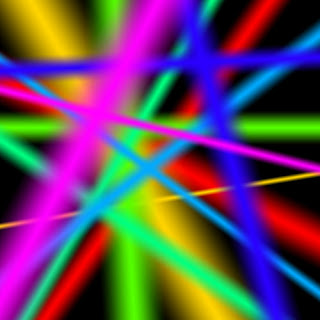
If your gradients are coming out too thick, try dragging less of a distance.

Step 3: - Mixing More Gradients
Create a new layer above layer "Stripes 1" and name it "Stripes 2". Reset the foreground color to Red (#FF0000) and repeat step 2 except this time, make the gradients on layer "Stripes 2".
Change the Blending Mode of layer "stripes 2" to "Difference".
You should now have something like the image bellow:
Step 4: - Finishing the Base
Merge all visible layers ( Layer > Merge Visible ) and Colorize the image using the Hue/Saturation window ( Image > Adjustments > Hue/Saturation )
Next, add a Plastic Wrap ( Filter > Artistic > Plastic Wrap ) with the settings used in the image bellow:
Finally, to add more contrast to the flesh, duplicate the layer and change the Blending Mode to "Overlay".

Step 5: - Rotations
Rotate the top layer 90 degrees to the right ( Edit > Transform > 90 CW ).
Duplicate the top layer and rotate it 90 degrees to the right ( Edit > Transform > 90 CW ).
Duplicate the newly made top layer and rotate it 90 degrees to the right ( Edit > Transform > 90 CW ).
Your Electric Plasma Gel should be done!