Tuesday, November 18, 2008

Wooden Text Effect in Photoshop

Preparations:

We will use an image of Krakograff texture and a wood texture that can be found on FreeFoto.
Click here to download Krakograff texture.
Click here to download the city image.

Step 1 - Setting Up Background:

Create a document of size 750 by 550px and place the texture image at the center of it.
Go to Filter > Render > Lighting Effects.

Fill in the settings shown in the diagram.

Step 2 - Adjusting Colors:

Create a new Hue/Saturation Adjustment Layer.

Fill in 0 for Hue, -75 for Saturation and 0 for Lightness.
Create another Levels Adjustment Layer and fill in the values 0, 0.60, 255.

Step 3 - Placing Your Texts:

The font I used in this tutorial is called Stencil. You can download it at Dafont with you have not got it.

Type in your text at the center of the document. Try not to use small font sizes as we will be doing emboss effects later on.

Step 4a - Applying Texture:

I placed the wood texture on top of my "10". Ctrl+left click on the text to load selection.

Apply a layer mask on the wood texture with this selection.

Step 4b - Applying Texture:

Similar to Step 4a, I reduce the size of the wood texture since "Steps.SG" is of a smaller font size.

Ctrl+left click on the texts to laod selection.

Apply a layer mask on the wood texture with this selection.

Step 5a - Apply Emboss Effects:

Right-click on the "10" and select choose Blending Options.

Activate Bevel and Emboss and fill in the settings as shown.

The colors used for Highlight Mode is #CEBE80 and Shadow is #000000.

Step 5b - Apply Emboss Effects:

Activate Inner Glow and fill in the settings as shown.

Right-click on the "10" layer and choose Copy Layer Style. Then right-click on the "Steps.SG" and choose Paste Layer Style.

The color used for Blend Mode is #2E2E00.

Step 5c - Apply Emboss Effects:

Change the Blend Mode of "Photoshop Tutorials" to Soft Light.

You should be seeing something similar to the example.

Step 6 - Adding Border:

Create a new layer below all these texts.

Load their selections and go to Select > Modify > Expand by 6 px.

Fill the selection with #FFFFFF on the new layer. This shall form a white border around the texts.

Step 7a - Adding Pillow Emboss:

Right-click on the border layer and choose Blending Options.

Activate Bevel and Emboss. Fill in the settings as shown in the diagram.

The colors used for Highlight Mode is #DBC09C and Shadow is #000000.

Step 7b - Adding Pillow Emboss:

Activate the Inner Glow and fill in the settings as shown in the diagram.

The color used for Blend Mode is #000000.

Finally, set the Blend Mode of this border layer to Soft Light.

There you have it! I have added a faded skull behind to complete the design.

Saturday, April 5, 2008

Metal Text Tutorial

Step 1:
We're going to try to get a really metallic chrome effect on our text, using curves and other features in Photoshop. Start off with a large canvas, the larger the better - I'm using 800x800. Make some text and have it a light-medium grey, in the example I'll use #B3B3B3. Start off by using a nice big bevel and emboss with settings similar to those bellow. As usual, the size should be suitable for the size of the image; try to make it look like the example.
Step 2:
Now we need to rasterize our layer. Create a new layer by pressing ctrl/cmd + shift + N, then link the new layer with the text layer, and press ctrl/cmd + E to merge it. This will rasterize our text layer. Now we need to adjust the image using curves - press ctrl/cmd + M to open the curves menu, then enter a nice even zig zag, as shown bellow.
Step 3:
Go Image > Adjustments > Variations, set the slider at the top to one notch from the bottom, and then click once on the 'Current Pick' box, once on the 'More Blue' box, and then once on the 'More Green' box - now click OK. Press ctrl/cmd + M again to open up the curves menu, and enter a slightly different curve like bellow. Now add a drop shadow using the default settings by going Layer > Layer Style > Drop Shadow and clicking OK.
Step 4:
Now use the layer styles again (Layer > Layer Styles) to add an inner glow using the settings in the first image bellow. Go to layer styles again and this time add a second bevel and emboss, with the settings from the second image. For the next stage, we need to create a selection - hold ctrl/cmd and click on the main layer in the layers palette. This will select the letter/text - now go Select > Modify > Contract and enter a value of 3. Now go Select > Feather (ctrl/cmd + shift + D) and enter 3 again.
Step 5:
At the bottom of the layers palette, click the 'Create New Fill or Adjustment Layer' button - a circle half black and half white - and click 'Gradient Map'. Click the arrow at the side of the dialogue box that appears (see the image), and load the file 'Metals'. Apply the gradient in the bottom left (black > white > black - "Steel Bar"), then set this layer's blending mode as 'overlay'. This should give a similar effect to that seen opposite. If not, try the tutorial a few times - there are several variables such as the curves input that can make quite a difference, and it takes some practice!

Tuesday, March 25, 2008

Energy Blast Tutorial #2

In this tutorial you will learn how to create a circular blasted ring effect.

Step 1- Vertical Line
Create a new image. For this tutorial, I used 500x500. Fill the background with a dark color. I used #1b1b32.
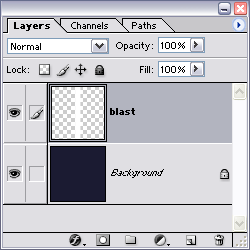
Create a new layer then double click on that layer, and name it blast.
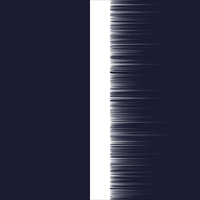
Create a vertical line on the blast layer by using the Rectangular Marquee Tool (M or SHIFT + M). My line was 50x500.
Fill the selection by setting your forground color to white (you can press D to reset to default colors). Then press ALT + BACKSPACE
Deselect by pressing CTRL + D
Step 2 - Spikes
Now we add the spikes.
Filter » Stylize » Wind » [ Method: wind Direction: From the Left ]
Repeat the last filter 2 more times by pressing CTRL + F twice.
Step 3 - More Spikes
Spikes on the other side.
Filter » Stylize » Wind » [ Method: wind Direction: From the Right ]
Repeat the last filter 2 more times by pressing CTRL + F twice.
Step 4 - Motion Blur
Add a little blur.
Filter » Blur » Motion Blur [ Angle:Distance: 20 pixels ]
Play with the # of pixels to get different effects
Step 5 - Polar Coordinates
Rotate the Blast Layer by pressing CTRL + A to select all, then CTRL + T to enter transform mode, then right click on the layer, and select Rotate 90° Clockwise, then press ENTER to apply the transform.
Now would be a good time to copy the blast layer if you want more then one blast ring. You can do this by pressing CTRL + J to duplicate the current layer, then click the eye icon next to the dup layer to turn it off for now.
Now we need to bend this into a curve. Make sure you have the blast layer selected,
Filter » Distort » Polar Coordinates [ Rectangle to Polar ]
Step 6 - Color Dodge
Next set the fill mode to Color Dodge and the fill to 80%.
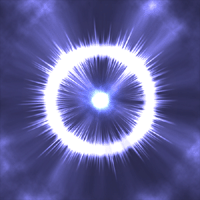
You should have a nice little blast ring now, and just need something to put below it and then just tweak the fill percent on the layer to get exactly what you want.
Well this in its self, is not all that impressive, so lets go on to the next section where I will show you how to spice it up a bit.
Step 7 - Sun Layer
Create a new layer above the other layers and name it Sun. Fill it with black, by pressing D to reset your colors, then ALT + BACKSPACE to fill with your foreground color. Set the blend mode to Color Dodge.
Filter » Render » Lens Flare [ 105mm Prime, Brightness: 100%]
Make sure your Flare Center is in the center, or as close as you can get it.
Step 8 - Energy
Create another new layer below the sun layer, and name it energy.Set this layers blending mode to Color Dodge.
Filter » Render » Clouds
Filter » Distort » Pinch [100%]
Repete the last filter two times by pressing CTRL + F twice.
Step 9 - Chrome
Copy the energy layer by pressing CTRL + J
Filter » Render » Lighting Effects
Colors: White
Light type: Omni
Intensity: 14
Gloss: 65
Material: 96
Exposure: 30
Ambience: -8
Filter » Sketch - > Chrome [ Detail:4 Smoothness:7 ]
tip: you can play around with the numbers on both the Lighting Effects, and the Chrome filters to achieve different effects.
Step 10 - Levels
Now we just make the whites a little whiter by using Levels
Press CTRL + L to bring up the Levels.
Slide the sliders around untill you get the amout you want. I used 25, 1.00 133
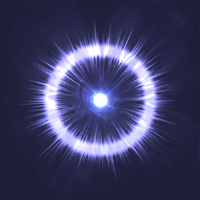
You should have a pretty nice looking energy blast effect.
Step 11 - Play around
This is a very fun tutorial to play around with and create endless possiblilities. Try these on your energy copy layer:
Filter » Render » Lighting Effects
Colors: White
Light type: Omni
Intensity: 14
Gloss: 65
Material: 96
Exposure: 30
Ambience: -8
Levels: 0, 0.55, 187